
How Do I Use My Own Mail Client to Send & Receive Mail Using My IMC Email Address?
This explains how you can send email from your own personal email client but send from an official @irishmountaineeringclub.org email address. An additional advantage of using these email addresses is that, as well as protecting your personal email address, a history of all emails is retained on our ISP (Blacknight).
There are mailboxes active for the following IMC users:
- chair@irishmountaineeringclub.org
- hut@irishmountaineeringclub.org
- library@irishmountaineeringclub.org
- webmaster@irishmountaineeringclub.org
- treasurer@irishmountaineeringclub.org
- publicity@irishmountaineeringclub.org
Blacknight (our webhosting company) does not provide a webmail client themselves, so if you want to send & receive mail from your respective @irishmountaineeringclub.org address, you will need to integrate it into your personal email client of choice. How you do this depends on what email client you use, but the information required is pretty much standard.
You may believe this is already partially setup up because you are receiving email from your @irishmountaineeringclub.org address. However, this is not the case. Blacknight is merely currently configured to forward mail received on each @irishmountaineeringclub.org address to your personal email address – you cannot send.
Make sense so far?
I will explain how I did this for my gmail account using test@irishmountaineeringclub.org as an example, it requires the adding of POP3/SMTP account details. You will need to do similar for your own email client.
- In Gmail, go to Settings and click the “Accounts and Import” tab
- In the “Check email from other accounts (using POP3)” section click “Add a POP3 account that you own”
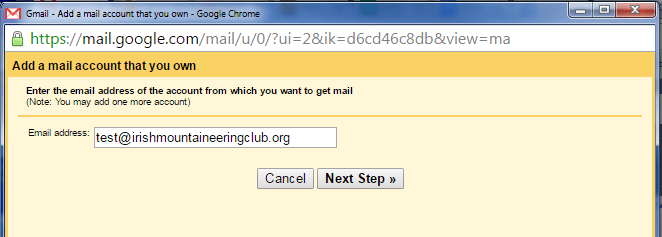
- Fill in your email address & hit Next Step:
- Fill in the details for your email address as below:
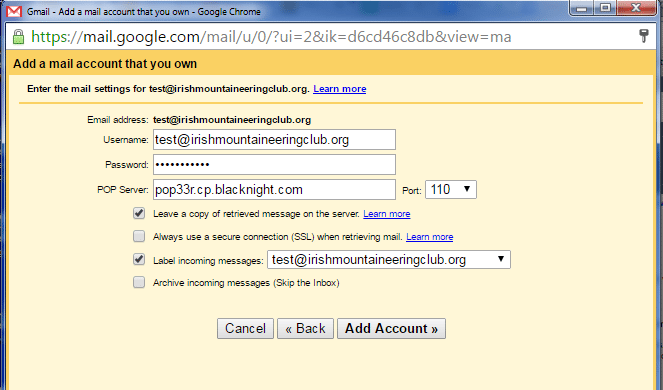 Notice that “Leave a copy of retrieved message on the server” is ticked. That’s important!
 - The “Label incoming messages” bit is just something useful in Gmail but not mandatory
- Contact the IMC Webmaster for your password
- Hit Add Account
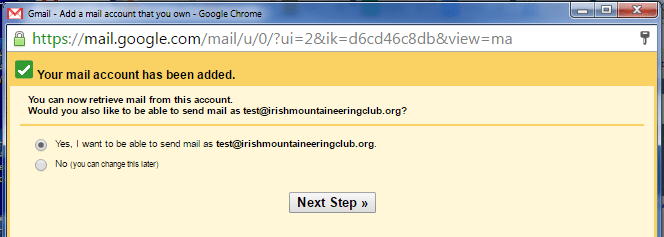
- You will be asked if you want to be able to send from this account, say Yes (that, after all, is why we’re here) & hit Next Step:
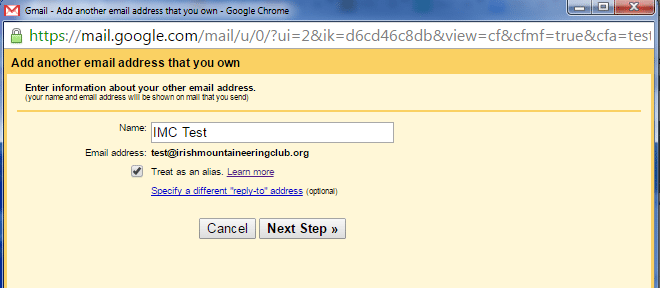
- Enter the human readable “From” name for your account (as it will appear to other people who get the mail, so for example “IMC Publicity Officer”) & hit Next Step:
- Enter the SMTP details for your account (the password will be the same as used before):
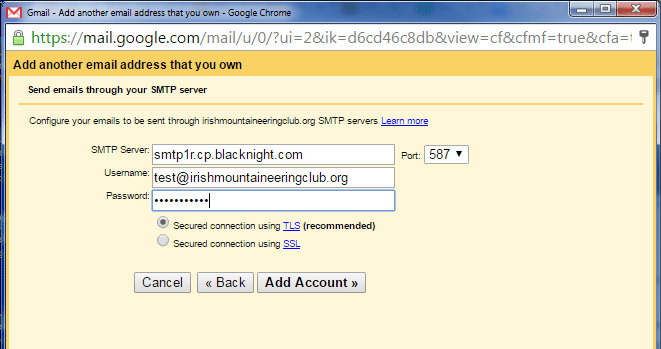
- Finally hit Add Account.
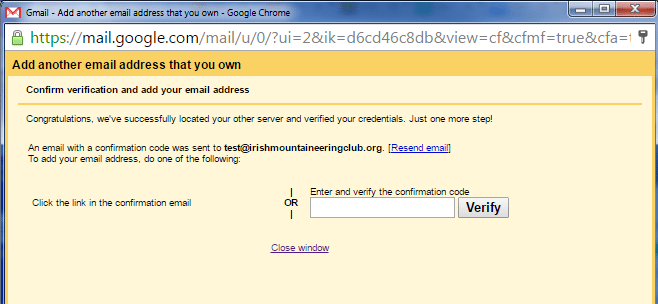
- Google will then send you a confirmation mail. Click the link in that mail or enter the code on the final page:
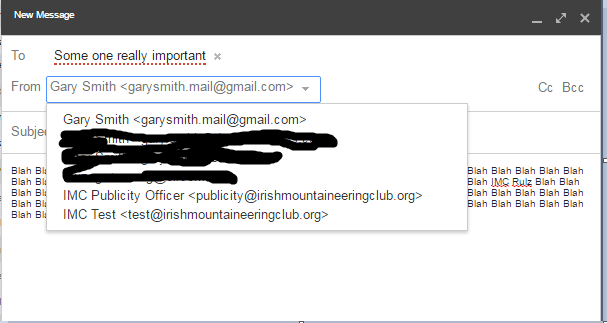
That’s it. All done. So now, when you send an email, you will find you have a choice of “From” addresses and you can choose your IMC address from the dropdown, viz:
Finally, if you do set this up. Let the IMC Webmaster know so they can turn off Mail Forwarding for you.
Also, be aware that having enabled this, you may well be inundated with old mails as we intentionally leave all previous mail on the server. You may wish to refer back to these mails in time or to delete your local copies. Good email management is essential here, the above configuration for Gmail will label all mails with your IMC email address, so they can be easily isolated. If you use another mail client, you are recommended to set up similar rules & folders.